This tutorial takes you from an empty RigOne to a finished run and a goal handed to Auto. It uses a small web project as the example; any folder with code works. Plan on about fifteen minutes, most of it spent watching the agents work. The screenshots show the shipped app with demo data.
Step 1: open a project and check your agent apps
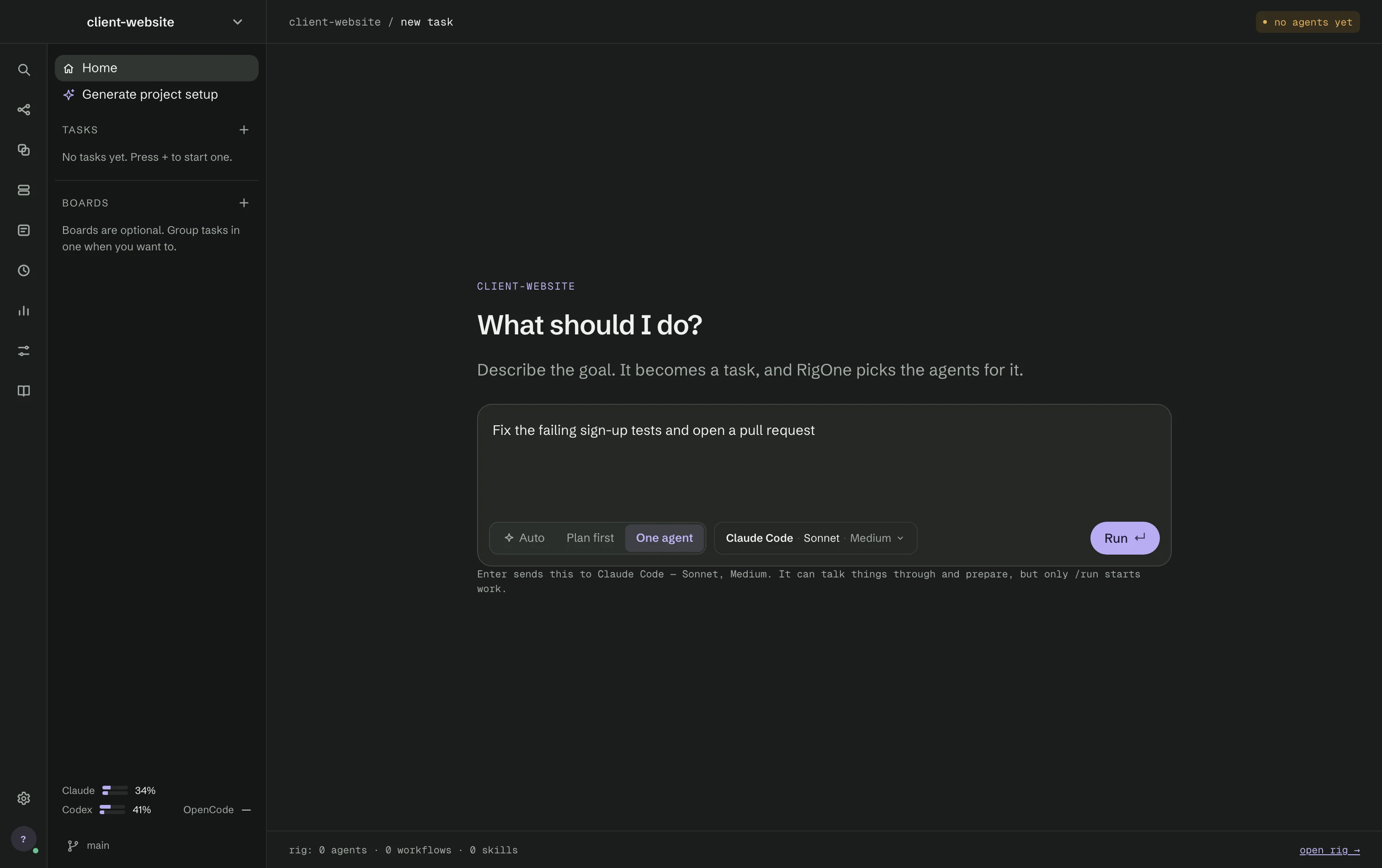
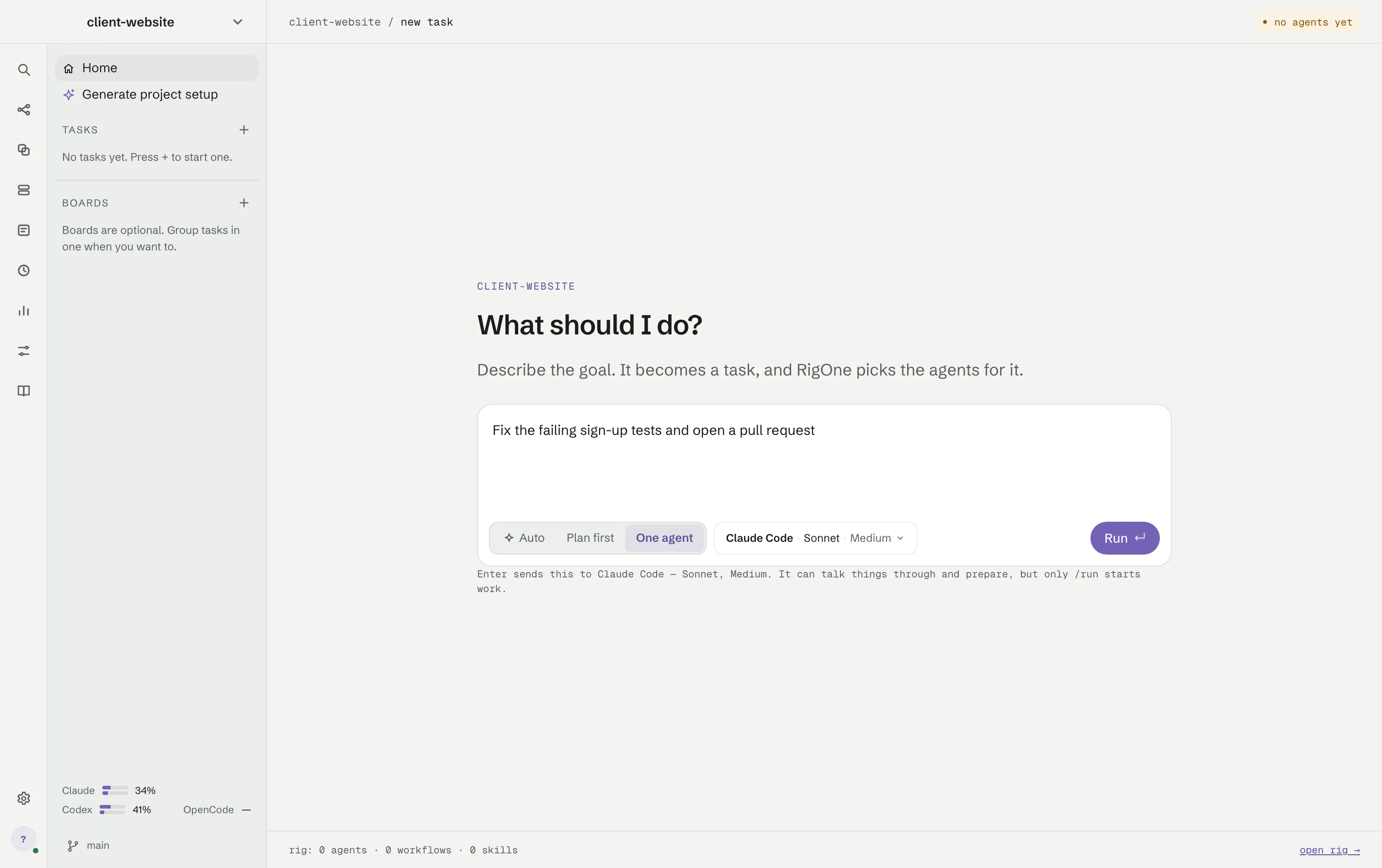
Open the project menu at the top of the side panel and choose Add a workspace: give it a Name, press Choose folder and pick your project. RigOne opens a new task that asks What should I do?, and the badge in the corner says no agents yet.
Before you build anything, open Settings → Health check and check that at least one agent app
says OK. If one is missing, install it or sign in — run claude, codex or opencode once in
Terminal — and press Run again.
You do not need an agent to start talking: in One agent mode the box answers in the project
folder with the agent app shown beside it. Only /run or a goal in Auto starts real work.
Step 2: make an agent with one job
Open Agents (⌘1) and press + Create. Give the agent a Name, a one-line What it does, and Instructions in your own words. Then set its Run settings:
- Runs with — Claude Code, Codex or OpenCode, with the model and effort the app offers. Press Change to pick them.
- Can it change files — keep Look only for agents that read, research or review. Only the agent that writes the change needs more.
- Can it reach the web — reading and searching only; it never widens what the agent may do with your files.
- Give up after — a timeout, stopped the same supervised way as Stop.
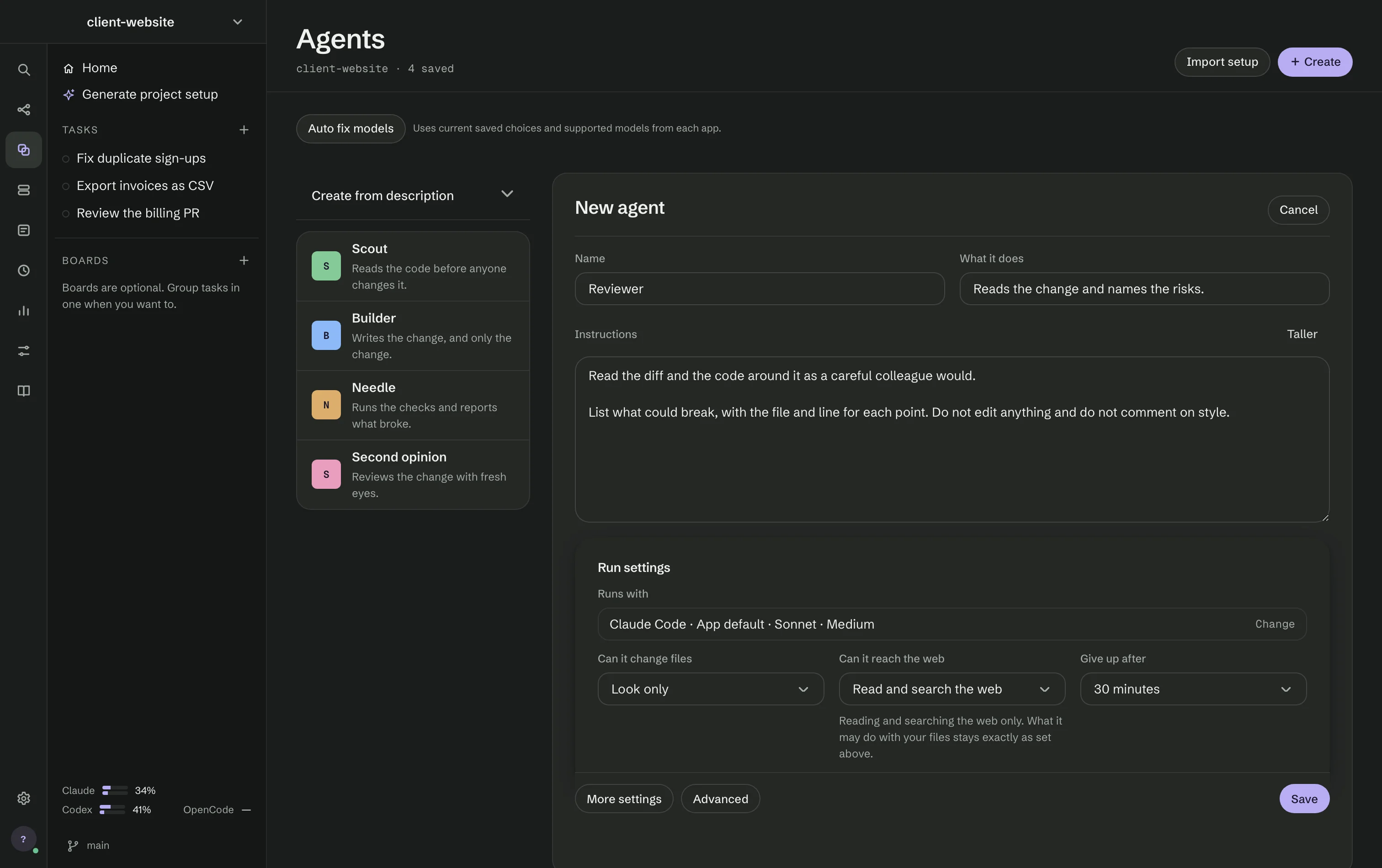
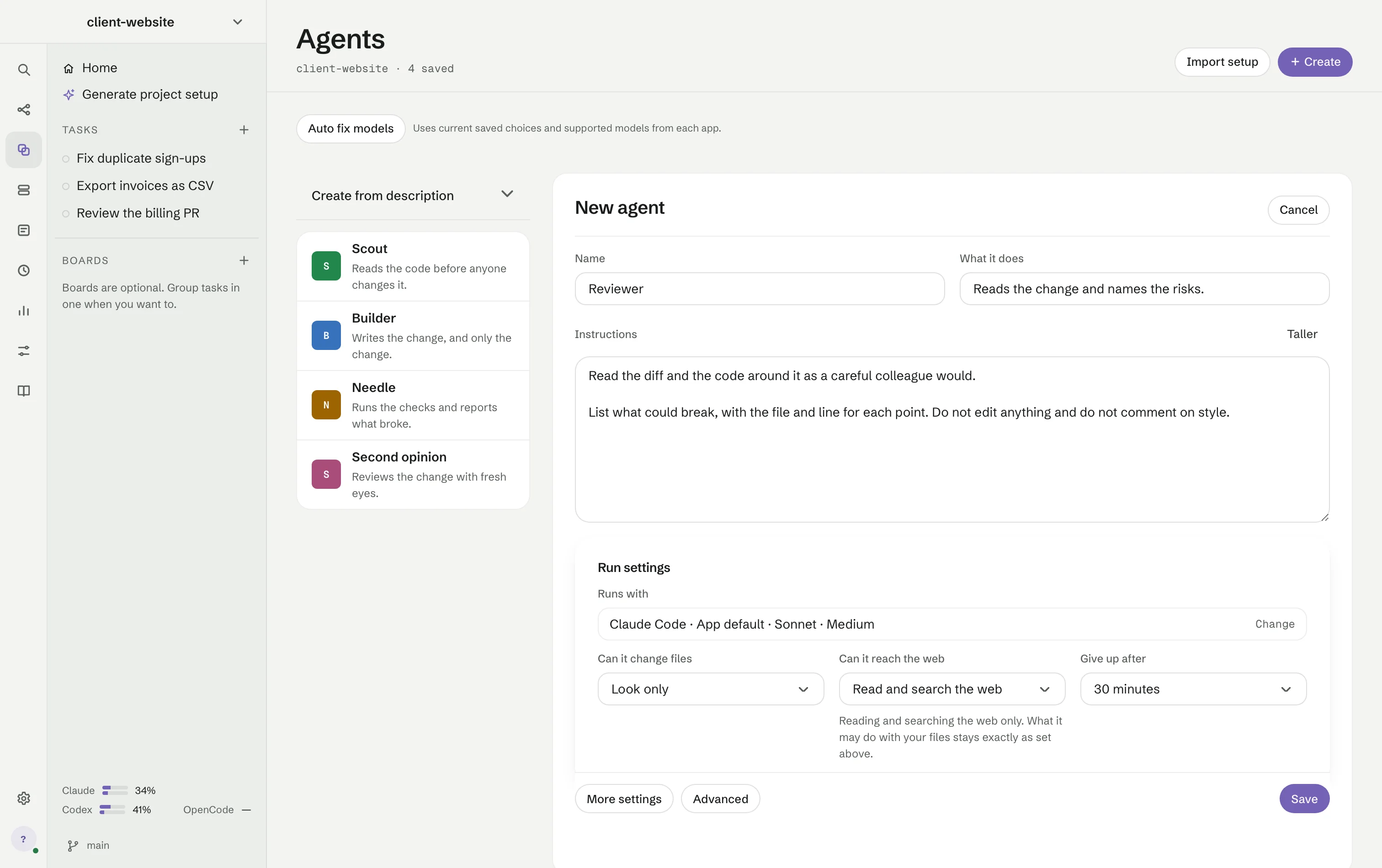
Press Save. For a first workflow, make three agents: one that reads and finds the cause, one that writes the change, and a reviewer. Create from description drafts an agent from a sentence when you would rather edit than write.
Step 3: put agents in a row
Open Workflows (⌘2) and press + Create. Use + Add to place a step for each agent and draw arrows between them. An arrow means "runs after", nothing else. Two steps that come after the same step start together, so a test check and a second opinion can run side by side once the fix is written.
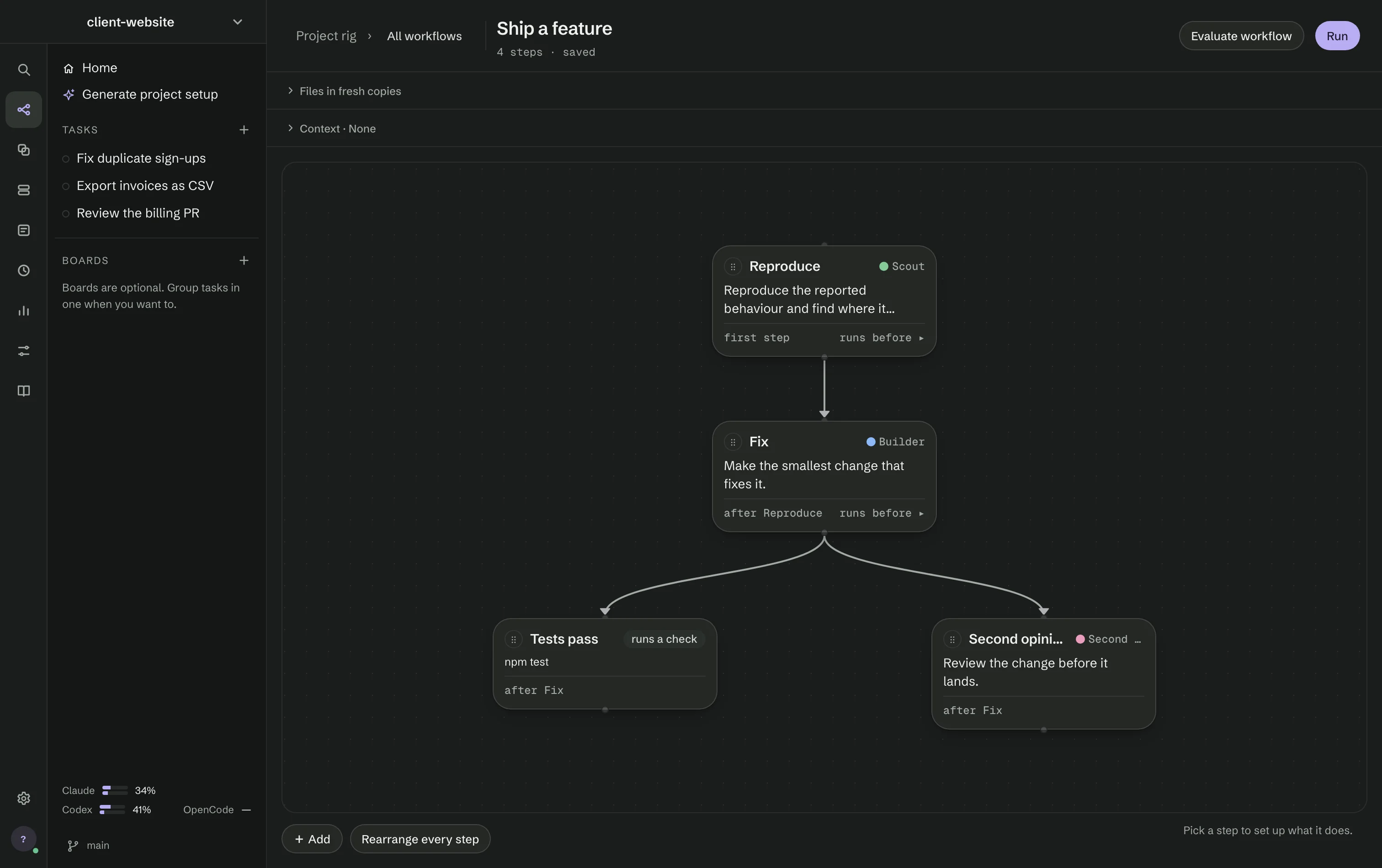
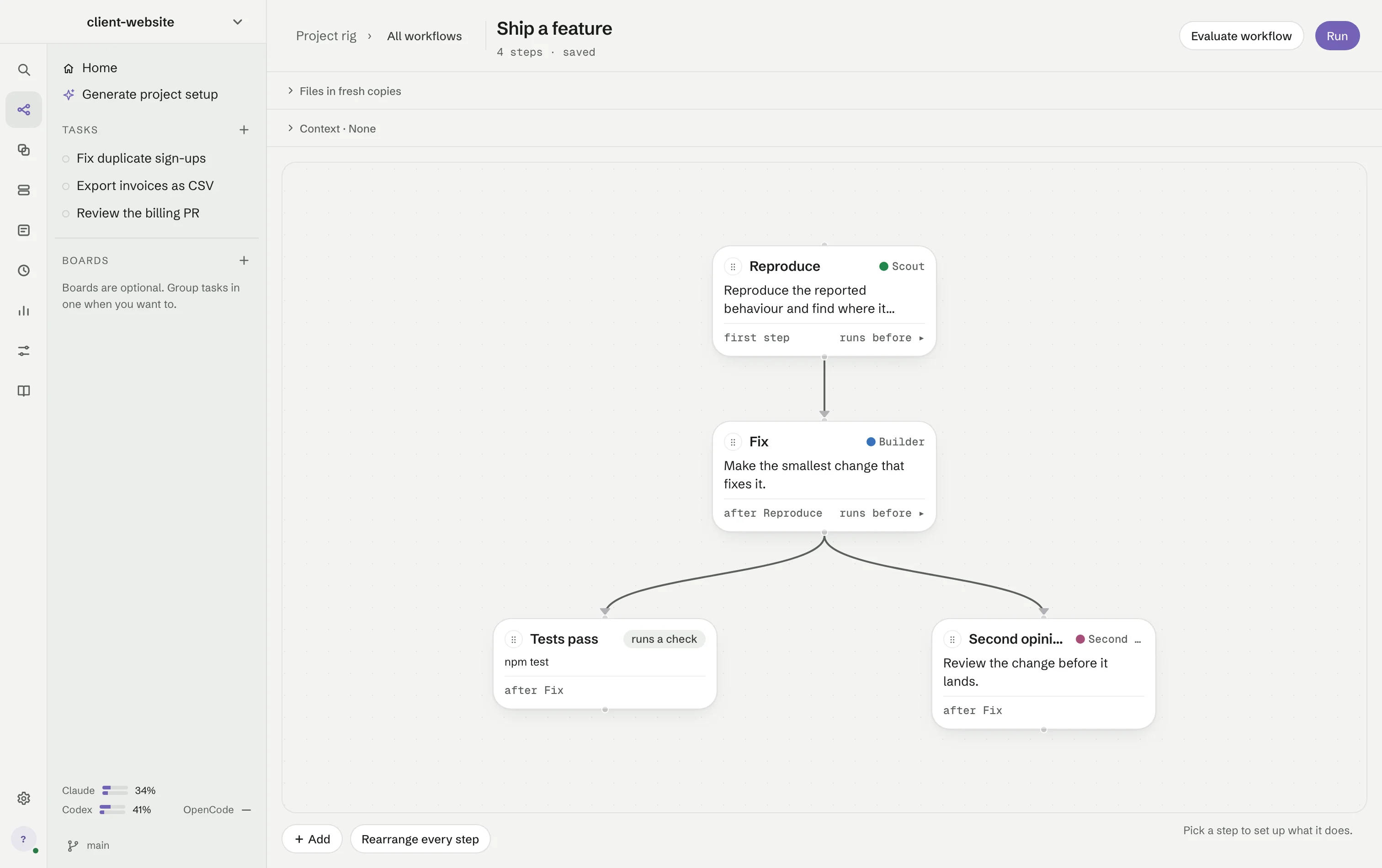
Add A step that runs a check after the step that changes code, with the command that proves the
work, such as npm test. RigOne runs it itself and records what it found; the agent does not get
to say it passed. Give the reviewing step an agent from another vendor, so the second opinion comes
from a different model.
Step 4: read the plan, then start
Open Tasks (⌘3) and press run a saved workflow at the bottom of the new task, or press the play button beside a workflow in Workflows. RigOne picks a workflow for you; choose another from the menu next to its name. The header shows the workspace and the number of steps, and the plan on the right lists every step with the one it waits for.
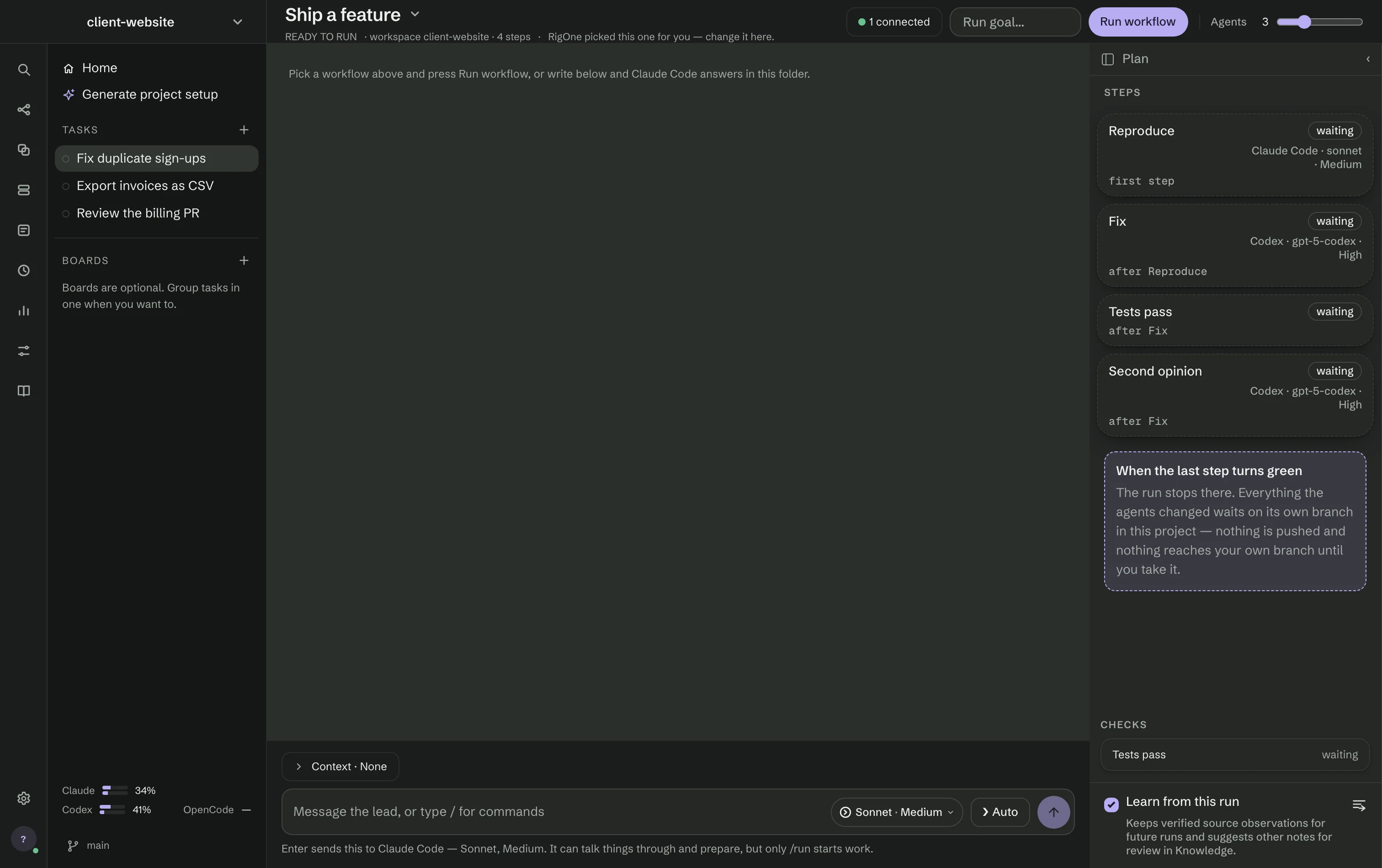
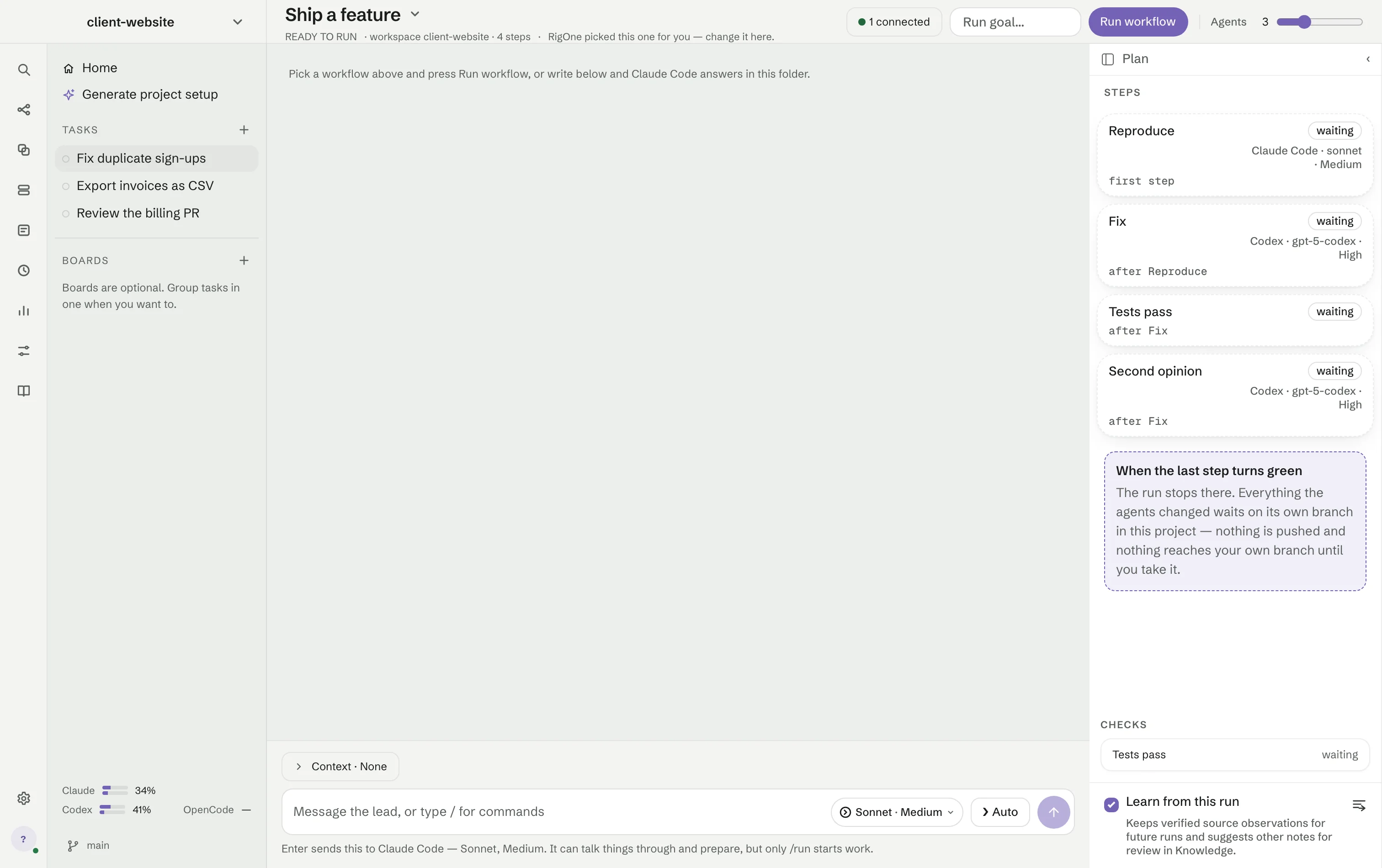
Set Agents in the header — how many steps may work at the same time. Leave Learn from this
run ticked to get up to three suggested notes afterwards. Press Run workflow, or type /run
in the command bar. Before the first step starts, RigOne checks the whole graph and names any step
whose model, effort or permissions will not work.
Step 5: watch, and answer when asked
The stream in the middle carries what every agent said, in order, with the files it read and edited and the commands it ran. The plan on the right shows each step's state.
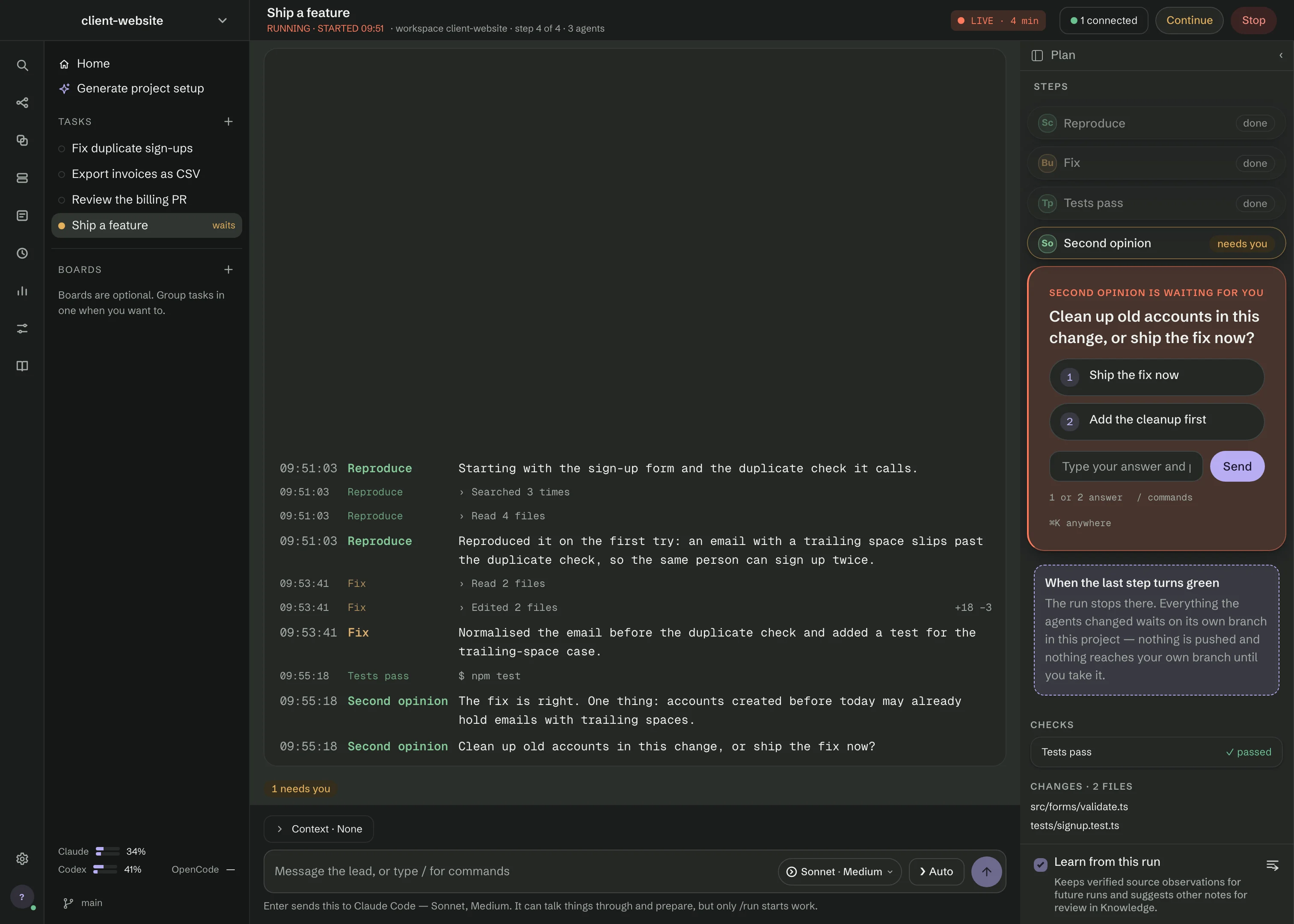
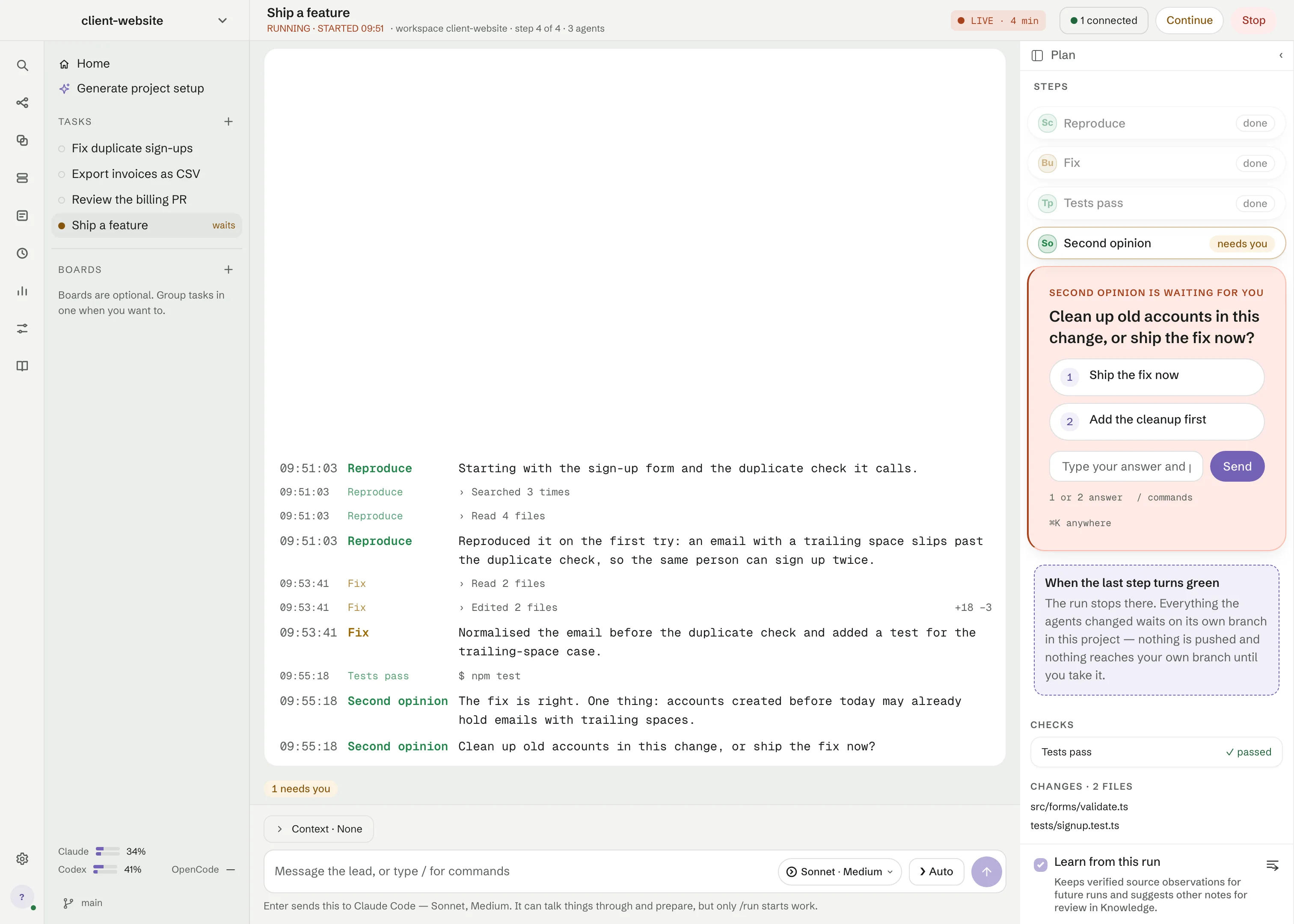
When an agent asks something, the question is pinned in the plan with numbered answers, and the task in the side panel says waits. Everything that does not depend on the answer keeps going. You can keep writing to the Lead in the command bar; a message sent while it works joins its current turn. Stop ends every running agent and records the proof that the processes are gone.
Step 6: take the result
Each step ends done, failed, stopped or not run, and the run keeps apart what the agents said, what the checks found and what you approved. The plan lists the files that changed. Everything the agents changed waits on its own branch in your project: nothing is pushed, and nothing reaches your own branch until you take it. Review that branch with Git as you would a colleague's, then merge it or delete it.
If you left Learn from this run on, open Knowledge and press Keep on the notes worth keeping. An approved note goes into every future prompt in this project.
Step 7: hand a whole goal to Auto
Once a workflow has run, try Auto. Press + next to Tasks in the side panel (⌘N), choose Auto, write the goal in a sentence and press Run. The line under the box says whether Auto has full access here; its rules link opens Settings → Auto.
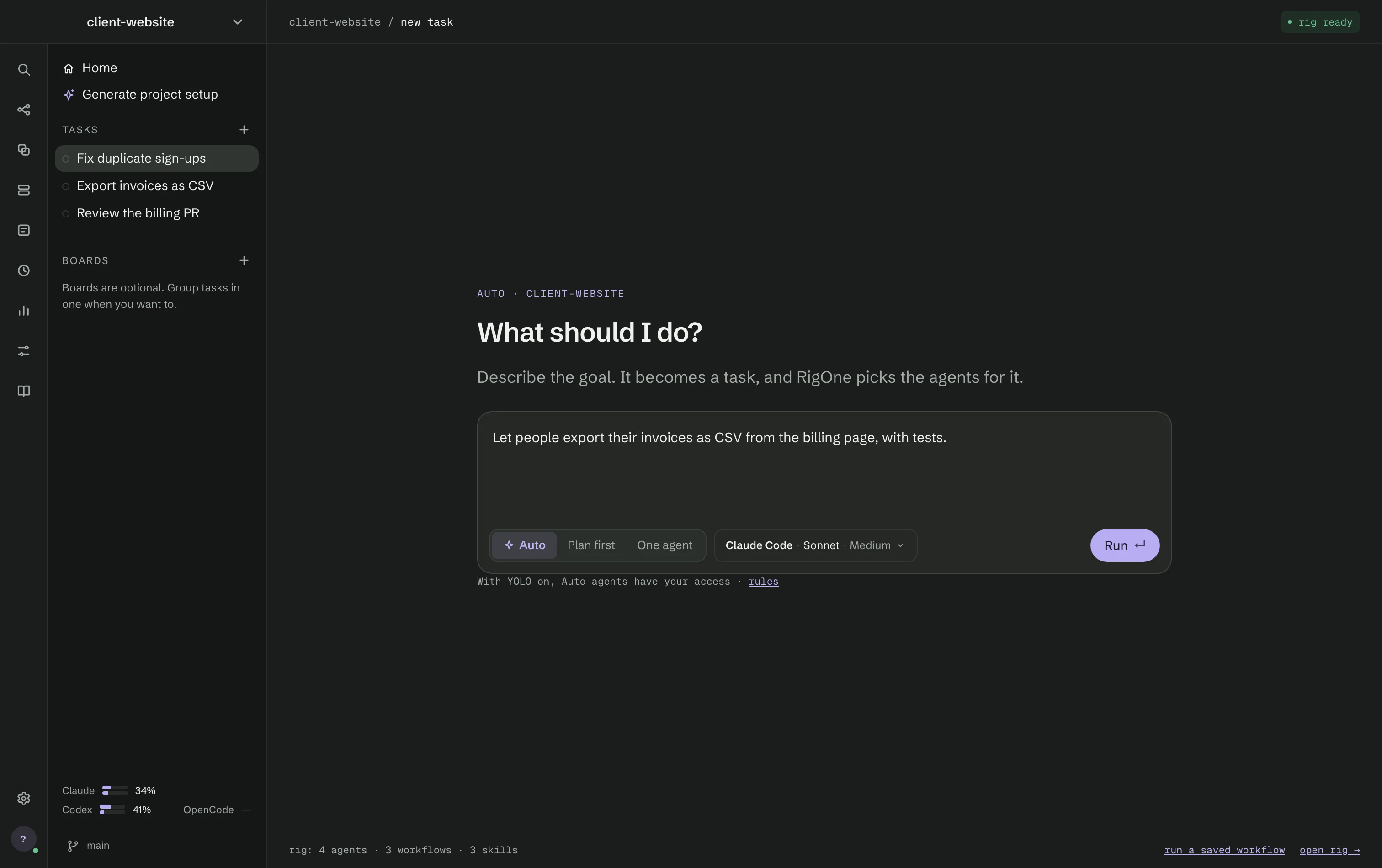
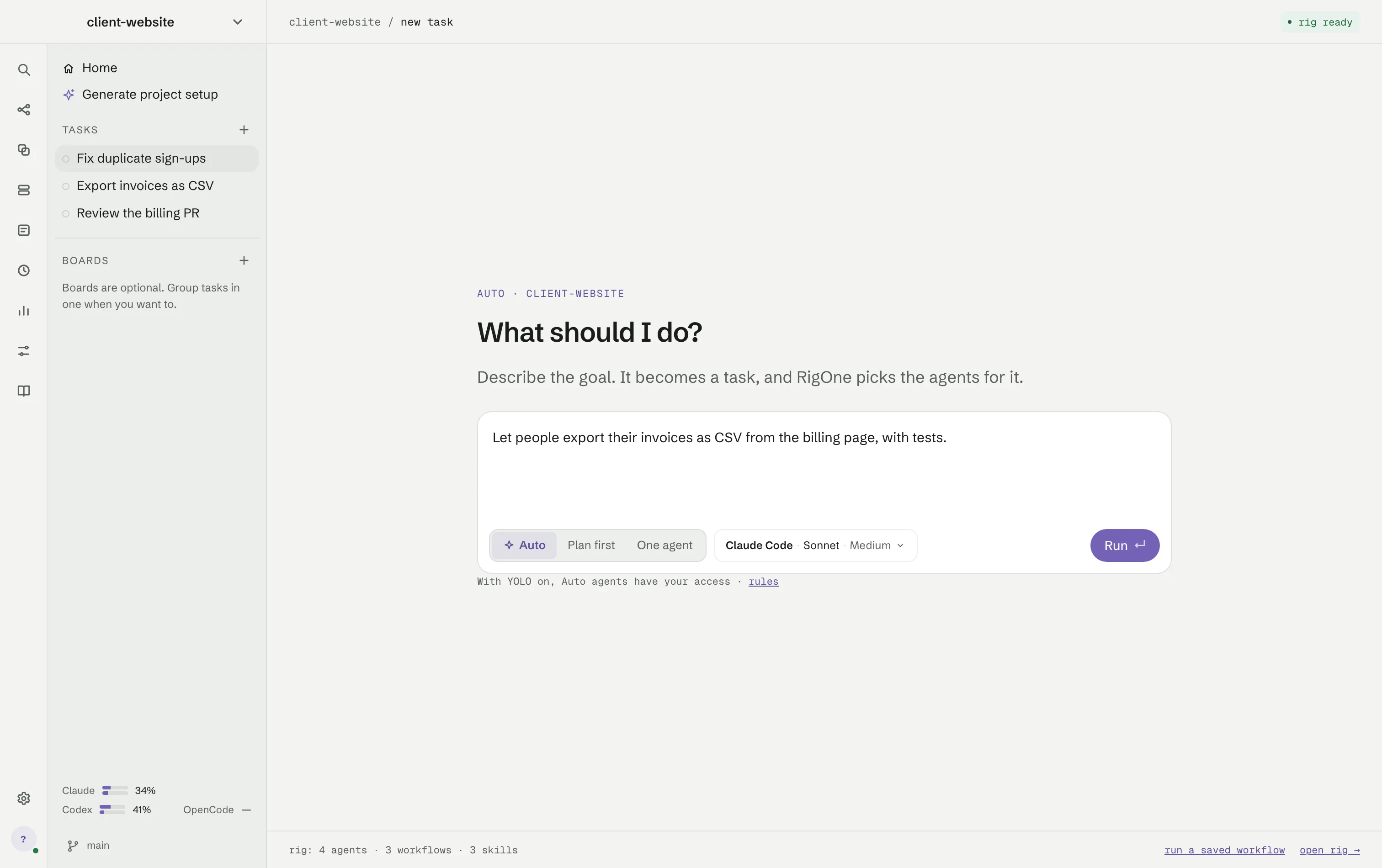
The Lead picks the agents it needs, builds ordinary workflows for the parts of the goal, runs them and reads the results until every part is verified by checks and review. Decisions that wait for you collect in Needs you, and macOS tells you when one waits while RigOne is in the background. The goal is saved, so Resume a goal picks it up later. Read Auto before you give Auto full access to a project you care about.
Working efficiently
- One job per agent. Small agents are easier to reuse across workflows and easier to fix when a step goes wrong.
- Only the writer writes. Keep readers, researchers and reviewers on Look only; it also lets RigOne run them beside each other without overlapping writes.
- Split independent work. Steps that do not depend on each other go on separate branches of the graph, and Agents sets how many run at once.
- Prove every change. Put a check after each step that changes code. "Nothing ran" never counts as a pass.
- Mix vendors. A second opinion from Claude Code on a change Codex wrote, or the other way round, catches what one model misses.
- Give context once. Put specifications, screenshots and PDFs in a Context set and attach it to the steps that need it, instead of pasting them into instructions.
- Break a big goal down first. Plan first (or
/tasks) turns a goal into a list you review before anything runs. - Let RigOne draft the rig. Generate project setup in Project rig proposes agents and workflows from your repository; nothing changes until you choose Apply setup.
- Move with the keyboard. ⌘K finds any place, workflow or agent; ⌘N starts a task; ⌘1 to ⌘9 open the screens.