Remote access lets you follow and steer your work from a phone or tablet. It needs your MonoOne account and works while RigOne runs on your Mac.
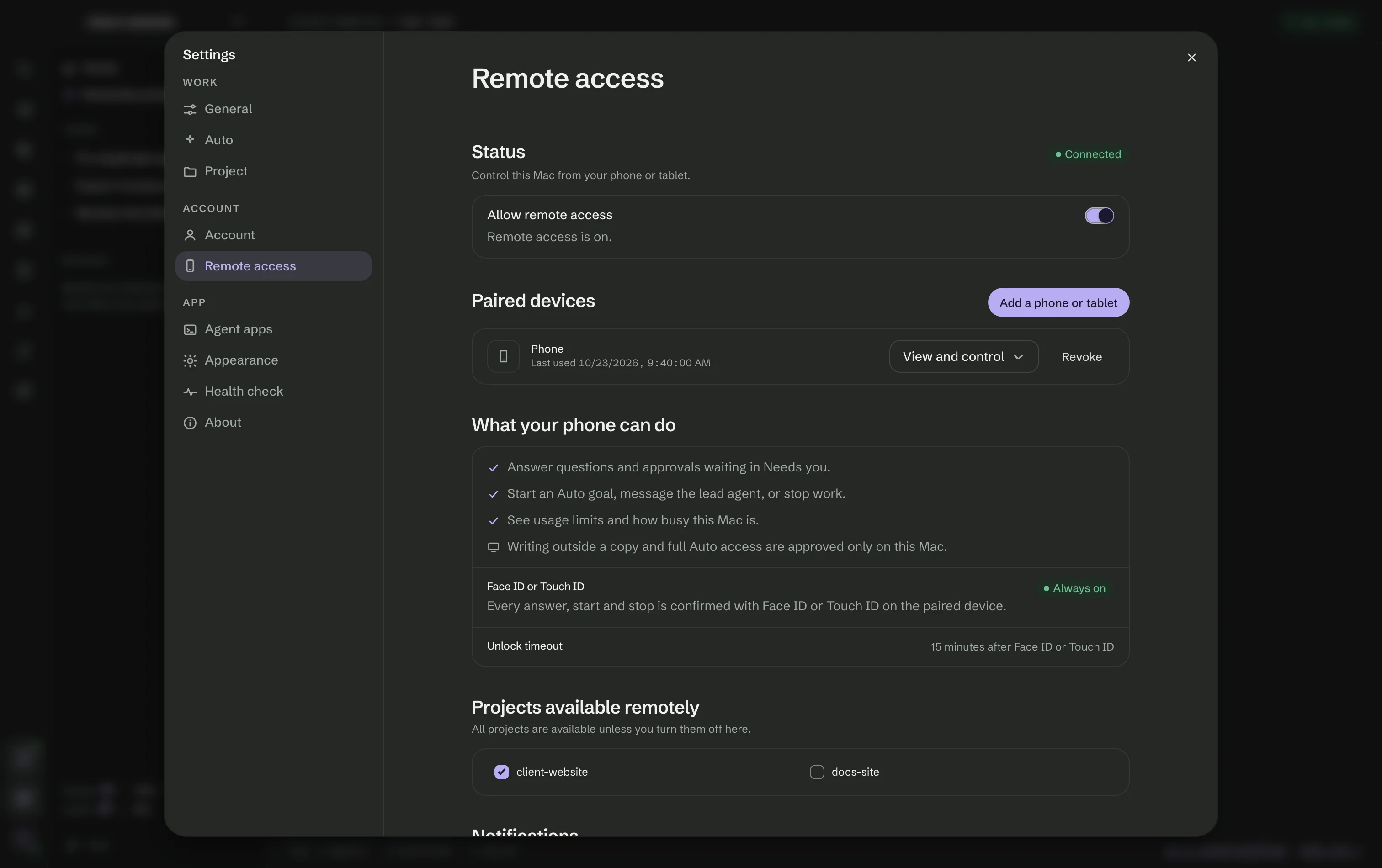
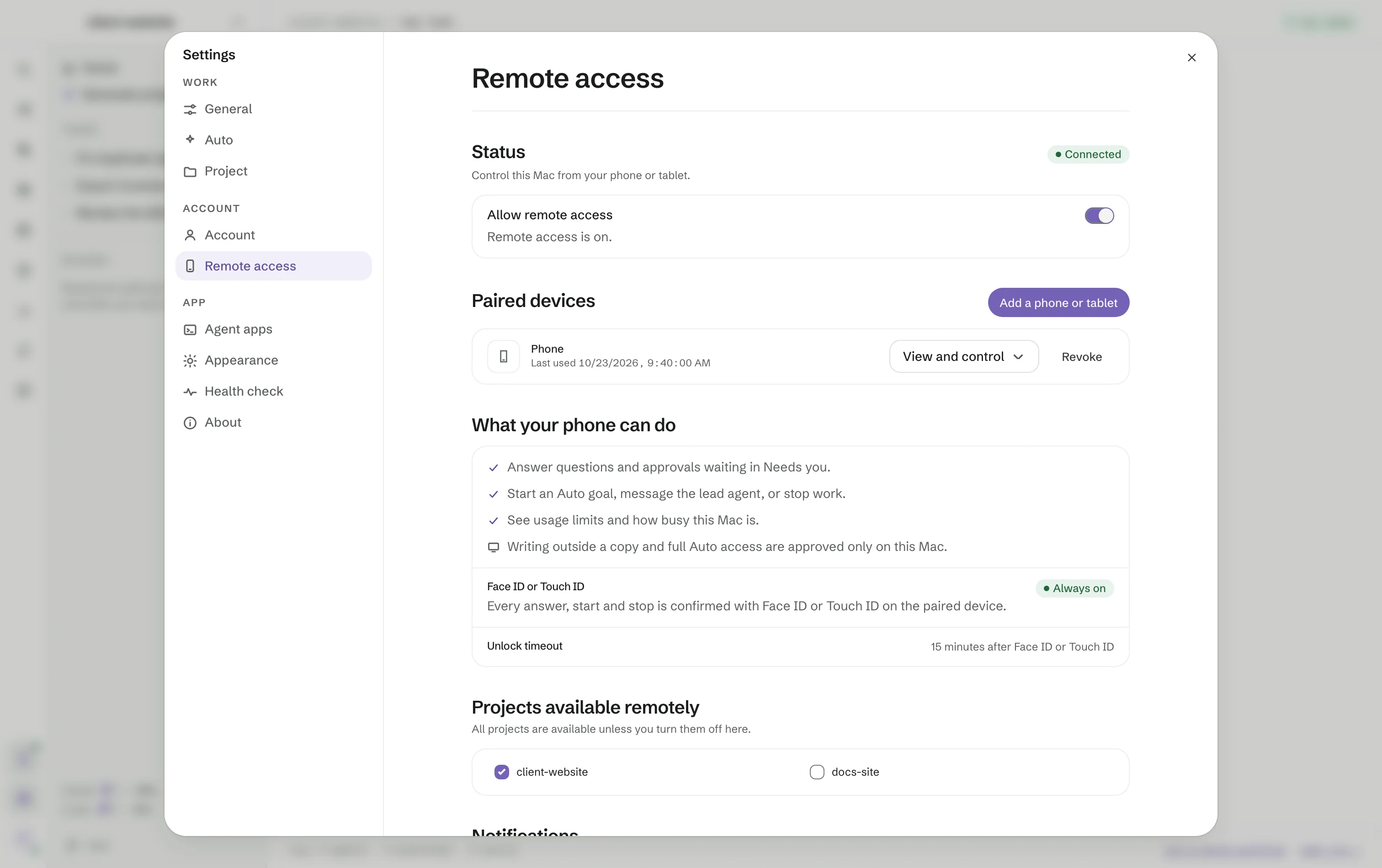
Pair a phone
- Sign in under Settings → Account.
- In Settings → Remote access, turn on Allow remote access.
- Press Add a phone or tablet and scan the code with the phone. On iPhone, add the remote page to your Home Screen first, then use Copy link on the Mac and paste the link in the Home Screen app.
- Check that the codes match on both screens, choose View and control or View only, and press Allow.
While Remote access is on, a phone icon in the rail shows whether it is connected.
What your phone can do
- Answer questions and approvals waiting in Needs you.
- Start an Auto goal, message the Lead, or stop work.
- See usage limits and how busy this Mac is.
Face ID or Touch ID is always on, and the unlock lasts 15 minutes from Face ID. Writing outside a copy and full Auto access are approved only on the Mac.
Devices, projects and notifications
Each paired device shows when it was last used, its access and Revoke. Projects available remotely turns single projects off. Show question text in notifications is off by default, and Keep this Mac awake for remote access keeps it reachable on power, or on battery while work is running. Activity lists every remote action. Turning Remote access off ends every device's access at once.