Tasks is where you give work to agents and watch it happen: talk to the Lead, run a saved workflow, hand a goal to Auto and answer what agents ask.
A new task
A new task asks What should I do? Write the goal and choose how it runs:
- Auto — RigOne picks the agents and runs the goal until it is verified. See Auto.
- Plan first — RigOne writes the task list first; nothing runs until you start it.
- One agent — one agent works on it in this folder. Type
/for commands.
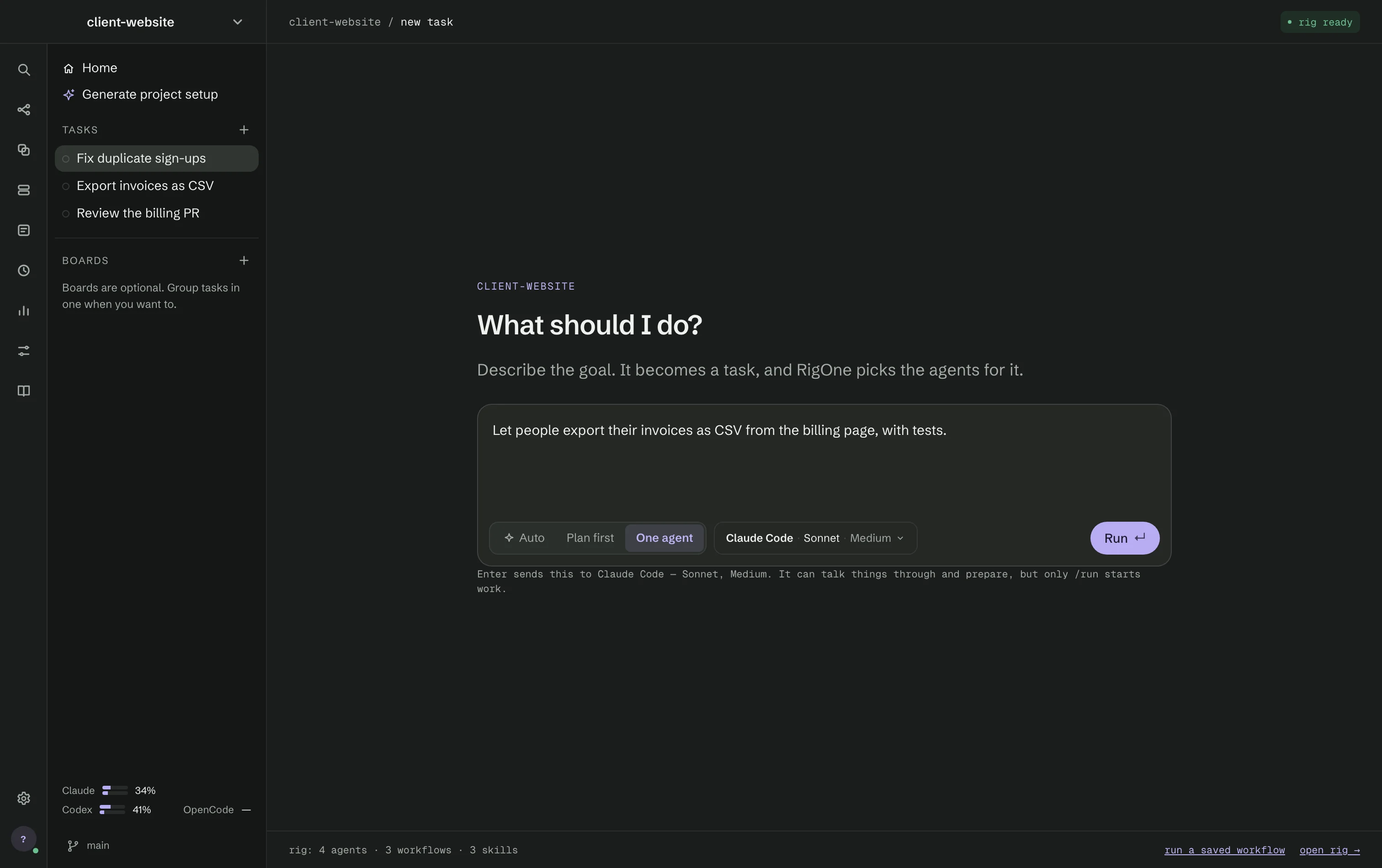
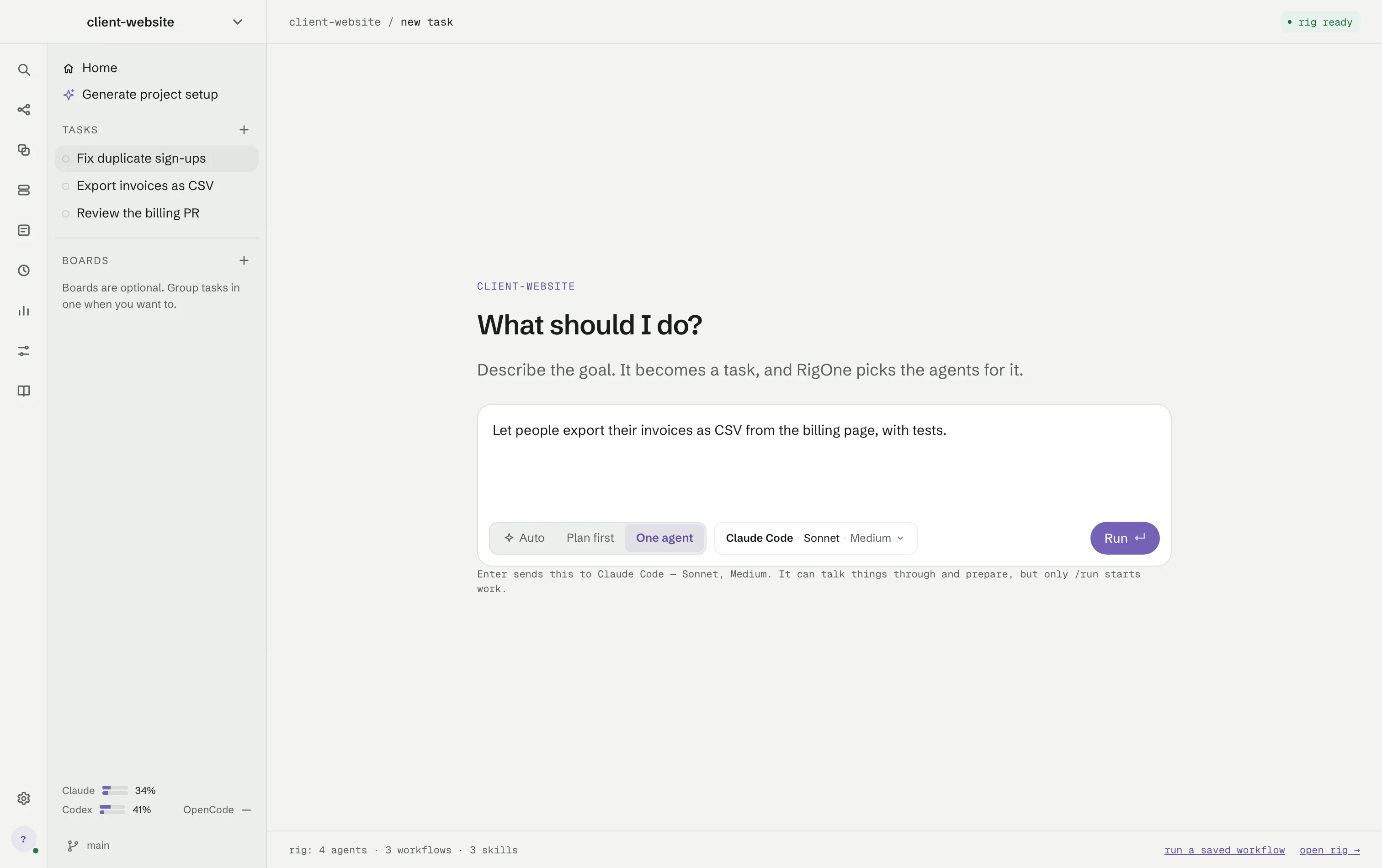
Beside the modes, the pill shows the agent app, model and effort; open it to switch between Claude Code, Codex and OpenCode, or to make the choice the default for this project. + board files the task on a board. Run (Enter) starts it; Shift+Enter adds a line.
The badge in the corner says rig ready or no agents yet and opens Agents. At the bottom, rig counts this project's agents, workflows and skills, run a saved workflow opens the plan of a workflow, and open rig → opens Project rig. Saved Auto goals and board tasks appear under Pick up where things are.
Run a saved workflow
The header names the workflow — RigOne picks one; choose another from the menu next to its name — and its state: Ready to run, Running, Finished, Failed, Stopped or Interrupted. On the right of the header:
- Connections — which tool servers are connected for this task.
- Run goal… — an optional sentence for what this run should build.
- Run workflow — starts a new run of the whole workflow from the beginning.
- Agents — how many steps may work at the same time. The limit is real: independent branches do run in parallel up to it. More agents finish sooner but use more memory.
Before any step starts, RigOne checks the whole graph: required inputs, permissions, and every step's model and effort against what your agent app reports. An unsupported choice stops the run before earlier agents spend time, and names the step that needs attention. These checks cannot promise that the network or your quota stays available for the whole run.
A spending warning is optional and off by default. Turn on Warn about spending in Settings → General to be told when a run reaches an amount; RigOne warns, it does not stop the run, and it cannot count a model whose price it does not know.
Watching a run
The stream in the middle carries what every agent said, in order, with the files it read and edited, the commands it ran and what they returned. When two or more agents speak, a menu in the header shows All conversations or one of them. Settings → Appearance → Conversation view draws the stream as a Terminal log (the default) or as Agent chat bubbles.
The plan on the right reads top to bottom. Each step card names the step it waits for, its agent app and model, and its state; a step that waits for something says what — a free place, the heavy-work slot, a Rust build, a usage limit or earlier steps — with numbers and since when. Checks and the files that changed follow the steps. Hide plan folds the column.
When an agent asks something, the question is pinned in the plan with numbered answers and a field for your own words; Dismiss closes it without answering, and the Lead hears that you did. Everything that does not depend on the answer keeps going. The badge 1 needs you under the stream opens Needs you.
Outcomes say what really happened: done, failed, stopped or not run. An agent saying "Done" never hides a later failure. Repeated runs of the same step share one card with a count. A long conversation keeps its newest lines on screen and brings earlier ones back as you scroll up.
Some work waits its turn on its own, whatever the limit: only one Rust build runs at a time on your Mac, whichever step or shell started it, while tests, running apps and reviews carry on beside it. When a provider is at capacity or a usage limit is reached, the step waits, says when it tries again, and continues the same conversation.
The command bar
The bar at the bottom talks to the Lead. The pill on its left chooses the agent app, model and
effort for this conversation; ❯ Auto turns Auto on for the task. The Lead can talk things
through and prepare, but only /run starts work.
| Command | Does |
|---|---|
/run |
Start a workflow. Add what to build after its name. |
/ask |
Start one agent. Add what it should do after its name. |
/start |
Start a command and keep it running. It shows up in the agents list. |
/tasks |
Break the goal into tasks you can review — nothing runs until you press Run. |
/history |
Show what has run in this folder. Add a word to narrow the list. |
/open |
Choose a folder to work in. |
/stop |
Stop the run that is going. |
A message you send while the Lead is working joins its current turn, and the Lead answers it before it carries on. If the Lead is inside a long command, the bar says your message lands when that command ends. Context above the bar attaches a context set to the conversation.
Stopping a run
Stop ends the whole process group of every running agent, then verifies that the processes are gone and records the proof with the run. Interrupt stops only what the Lead is doing now and lets it answer you.